






OLOy Memory
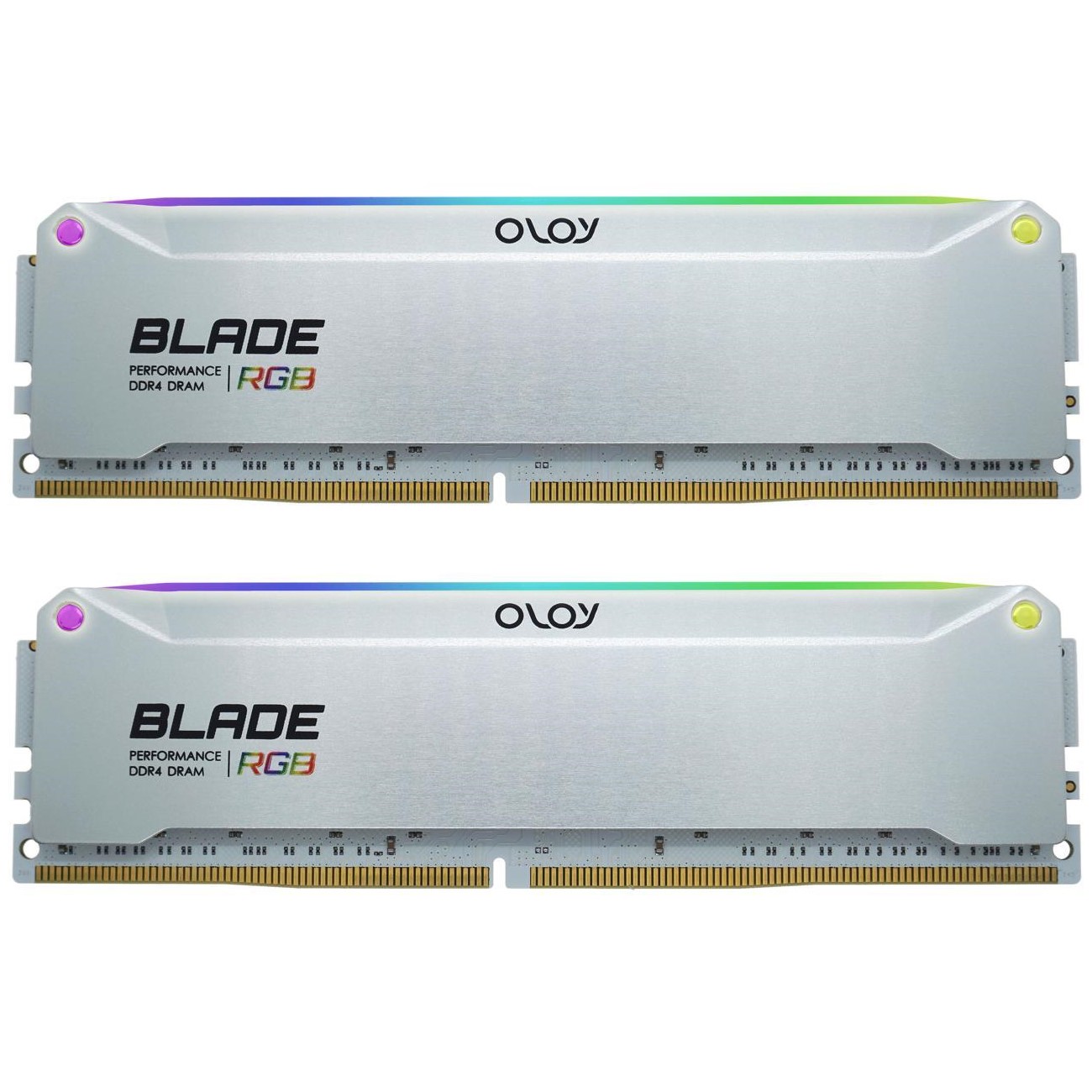
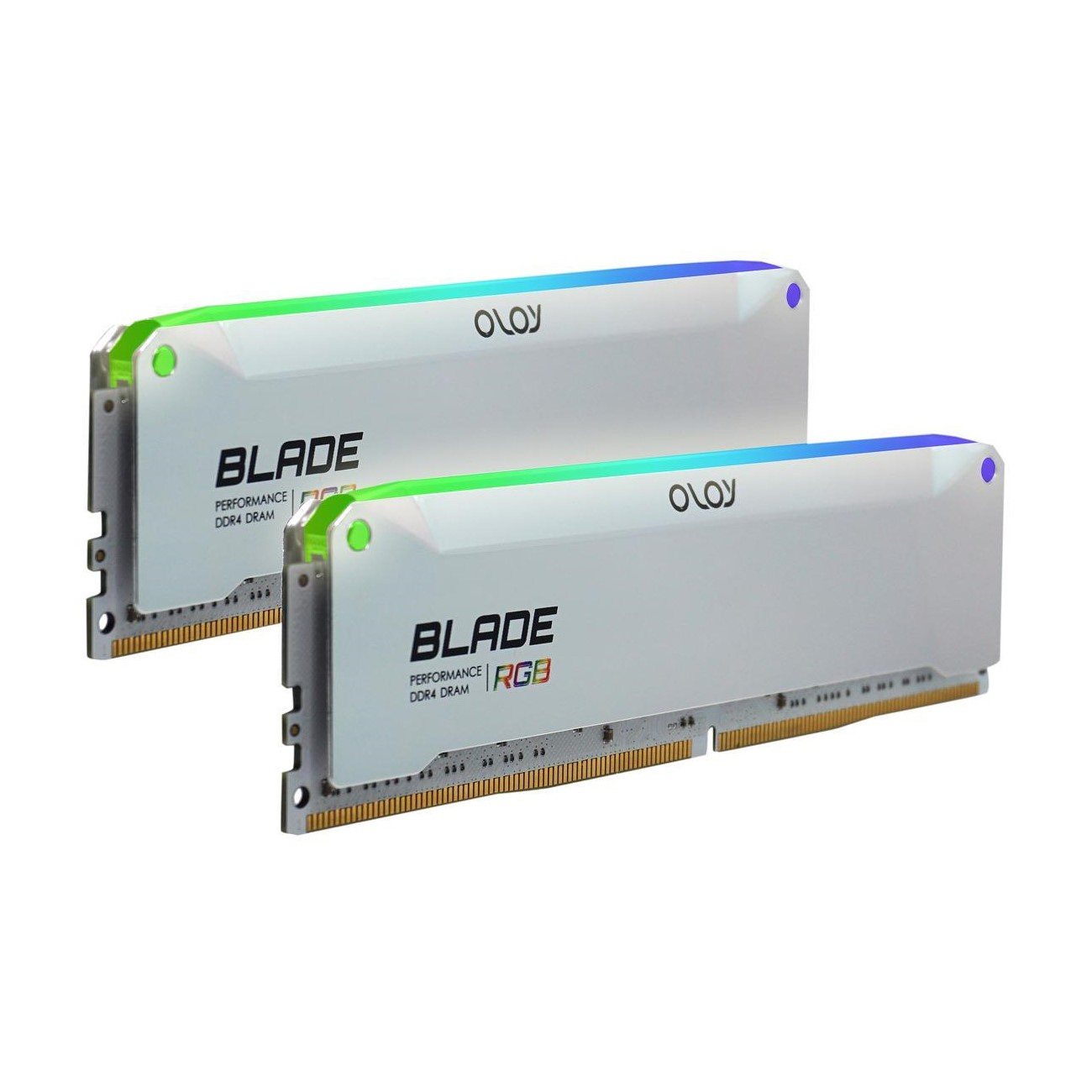
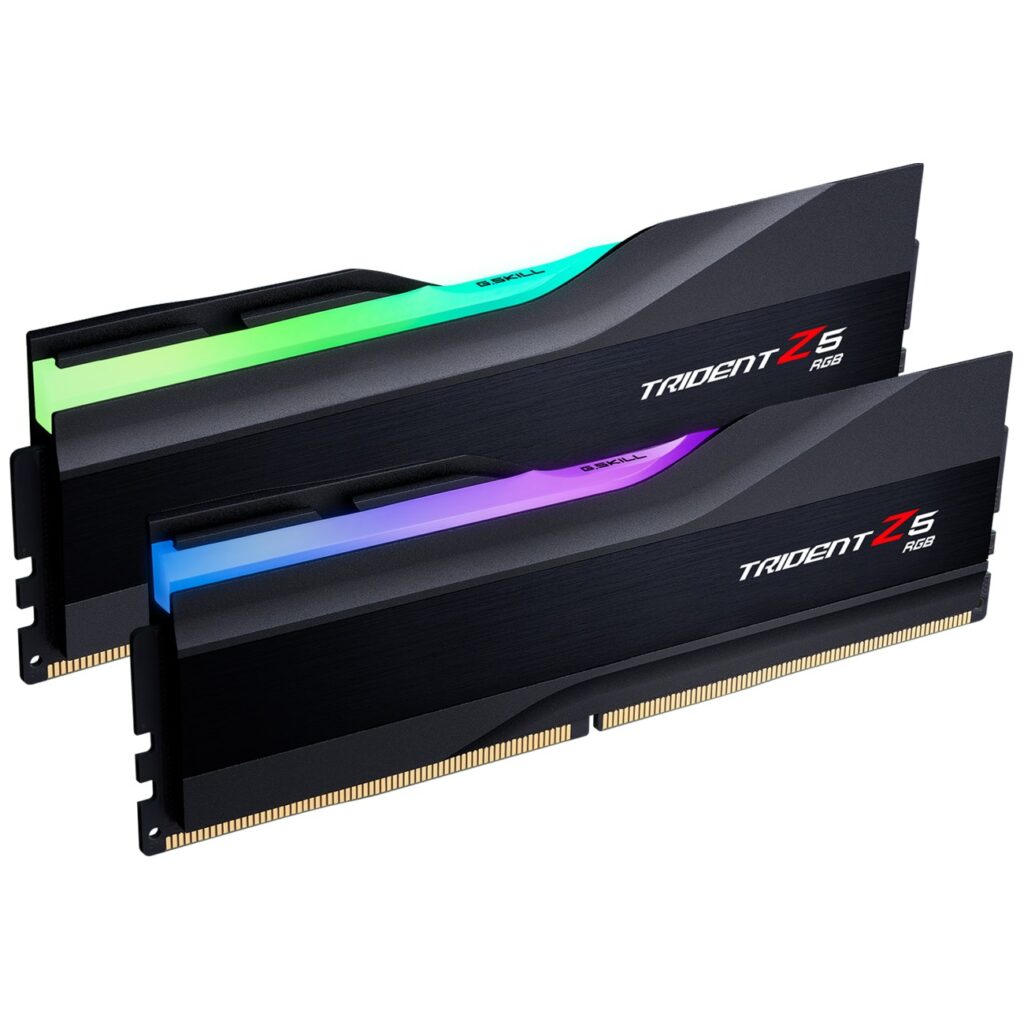
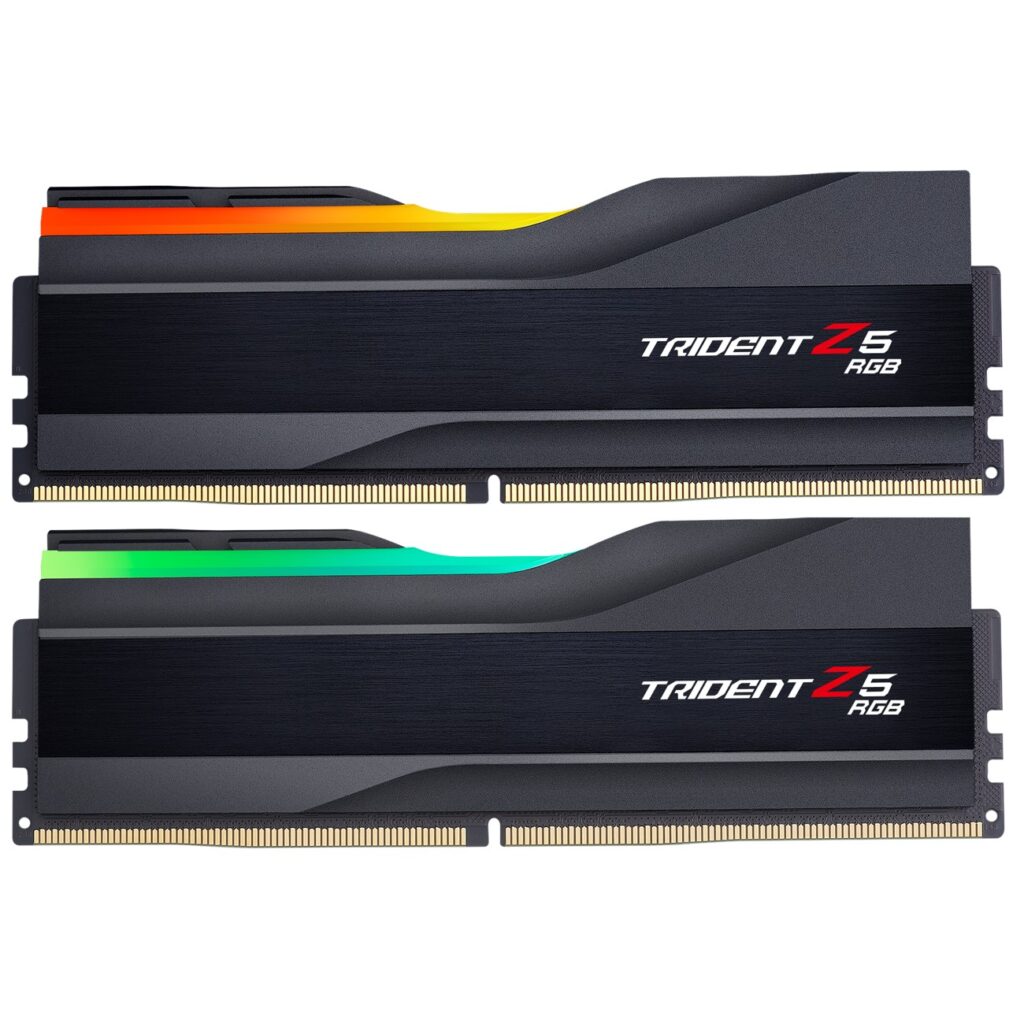
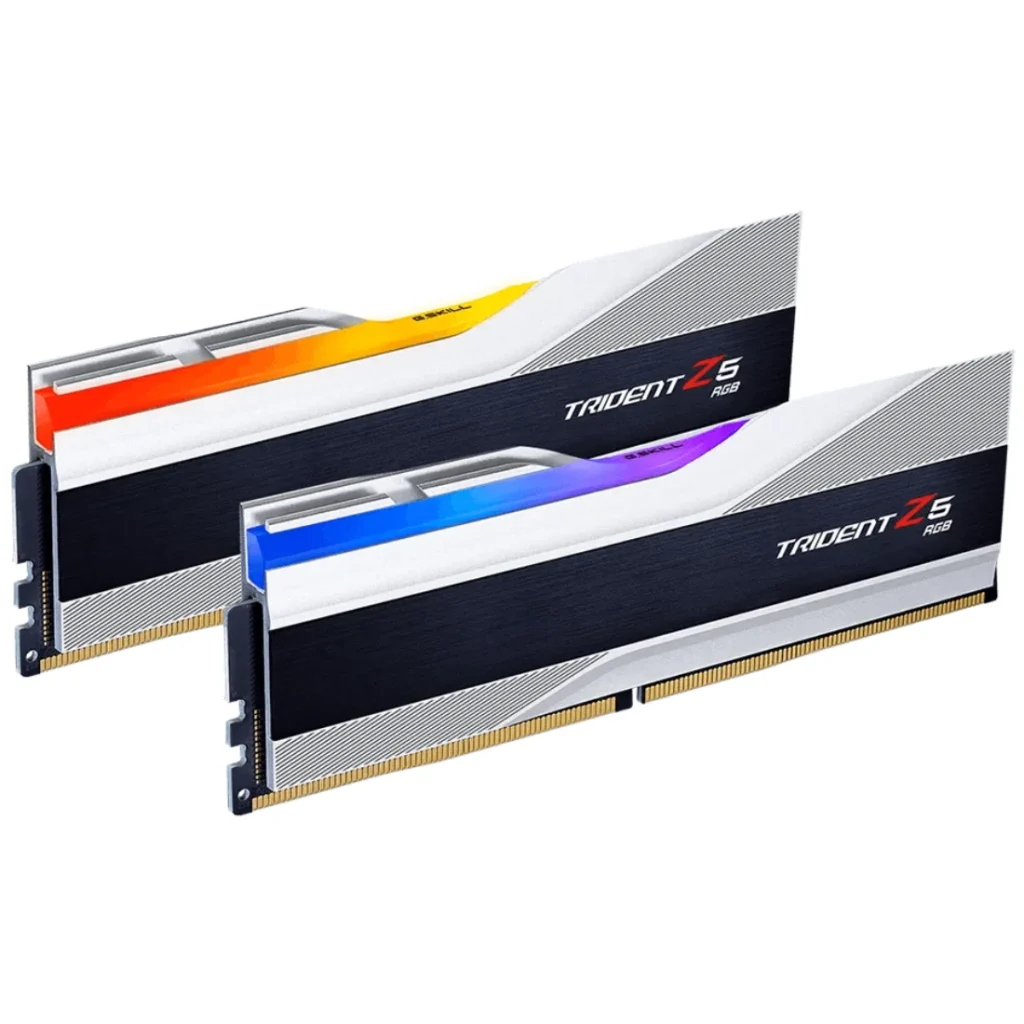
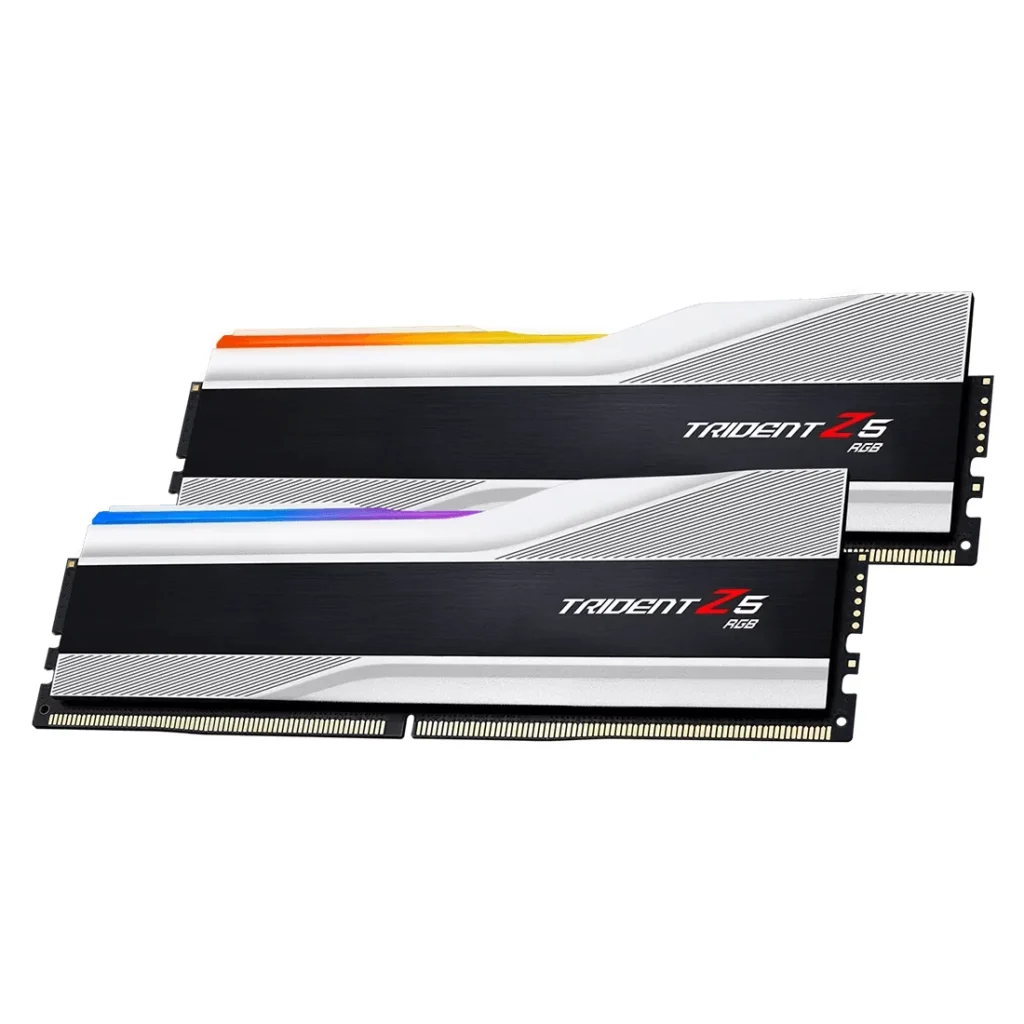
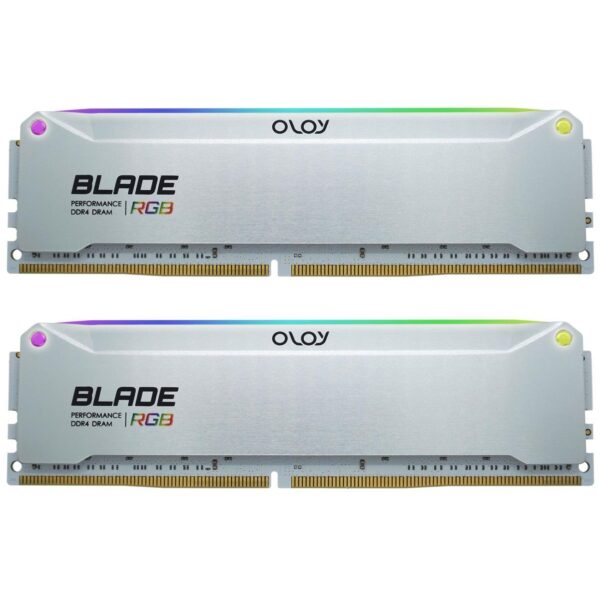
OLOy DDR4 RAM 16GB (2x8GB) Blade Aura Sync RGB 3600 MHz CL16 1.45V 288-Pin Desktop Gaming UDIMM (MD4U0836164BRADE)
100% Burn-In Test
Multi-Platform Burn-In Test
Adoption of original chips
Approve by Leading MB Manufacturers
Unique Semiconductor Equipment Chips Sorting Technology
OLOy Lifetime Warranty
All OLOy brand memory module products enjoy lifetime warranties, that its , free maintenance service is valid for the life of the product.
Except where prohibited by applicable local law, this warranty is limited to the original purchaser and is non-transferable.
This warranty gives you specific legal rights, and you may also have other rights that may vary under local laws.
Running at 2133MHz (non Advertised speed) ?
※Whenever you insert RAM that’s advertised with faster-than-standard speeds(e.g. above 3000MHz), just head to the BIOS and enable XMP to ensure that RAM is actually running at those speeds. While it’s simple, it’s easy to miss–especially if you’ve never heard of XMP and don’t know you need to perform this extra step.
Otherwise, for reasons your system might boot at the standard speed of SPD. (2133MHz/2400MHz in normal case of DDR4 memory, shown as 1066.7MHz/1200MHz in CPU-Z ).
How to enable XMP ?
1. Enter the UEFI/BIOS setting menu.
2. Enable XMP and choose the profile.
3. Save and restart your computer..
Reviews
Clear filtersThere are no reviews yet.